How to Screenshot a Website That Fights Back
Full-page captures that come out blank below the hero, 10,000-pixel images nobody can use, and a scrollbar baked into every shot. Five failure modes in automated screenshots — all of which produce a perfectly valid image file.
Taking a screenshot of a web page with Playwright is one line. Taking a usable screenshot of a modern marketing site is not, and the ways it goes wrong are quiet — you get an image, it just isn't an image of the page.
We needed twenty-odd screenshots of a client site for an article. Every one of the problems below produced a file that opened fine, looked plausible in a thumbnail, and was wrong.
Problem 1: the full-page screenshot is blank below the hero
The classic. You call:
await page.screenshot({ fullPage: true });You get a 10,000-pixel-tall image where the first screen is perfect and everything under it is white.
Two separate causes stack here, and fixing only one leaves you with a slightly less blank image.
Lazy loading never fired. Images below the fold are waiting on an IntersectionObserver that never triggered, because nothing ever scrolled.
Scroll-reveal animations reset. This is the one people miss. Sites commonly animate sections
in as they enter the viewport — opacity: 0 until a class is added. When Playwright takes a
full-page screenshot it resizes the viewport to the full document height and re-renders. Any
element whose reveal was tied to viewport intersection can end up back at opacity: 0, and you
photograph a page that is technically loaded and visually empty.
The fix is two steps. Walk the page to trigger loading:
await page.evaluate(async () => {
  const pause = ms => new Promise(r => setTimeout(r, ms));
  let h = document.body.scrollHeight;
  for (let y = 0; y < h; y += 500) {
    window.scrollTo(0, y);
    await pause(280);
    h = document.body.scrollHeight;   // re-read: lazy content grows the page
  }
  window.scrollTo(0, document.body.scrollHeight);
  await pause(2500);
  window.scrollTo(0, 0);
});
Re-reading scrollHeight inside the loop matters — lazy-loaded content makes the page taller as
you go, and a loop bound to the original height stops halfway down.
Then force everything visible, which defeats the reveal animations:
await page.addStyleTag({ content: `
  *, *::before, *::after {
    opacity: 1 !important;
    visibility: visible !important;
    transform: none !important;
    animation: none !important;
    transition: none !important;
  }
`});
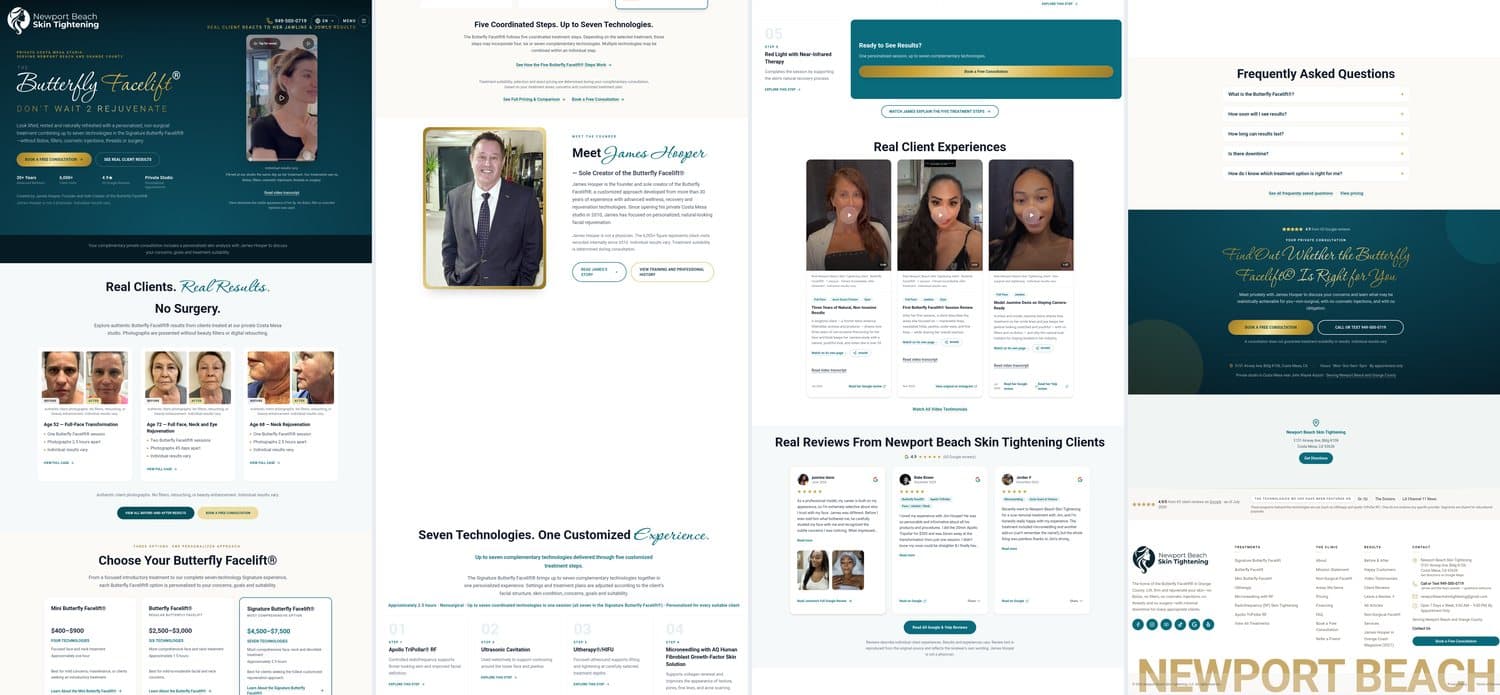
Here is the naive capture of a real client homepage — goto, then fullPage: true, nothing
else. Sliced into four columns so the whole thing fits (see the next section for why):
And the same page, same session settings, after scrolling it and forcing visibility:
How to know it worked, without eyeballing every file. Sample the image in horizontal bands and check how flat each one is — a blank band has almost no spread between its darkest and lightest pixel:
from PIL import Image
im = Image.open(path).convert("L")
band = im.height // 40
blank = 0
for i in range(40):
    lo, hi = im.crop((0, i*band, im.width, (i+1)*band)).getextrema()
    if hi - lo < 8:
        blank += 1
print(f"{blank}/40 near-blank bands")
Use getextrema() rather than standard deviation, incidentally. ImageStat.stddev throws
math domain error on a perfectly uniform band — floating-point variance comes out fractionally
negative and math.sqrt refuses it. Which means the metric crashes on exactly the input you wrote
it to detect. Ask how we know.
The numbers for the two images above: 30 of 40 bands blank, then 3 of 40 — those three being genuine areas of flat background. That check takes a second and is far more reliable than scrolling through images in a viewer.
Problem 2: nobody can look at a 10,647-pixel-tall image
Having fixed the blankness, we had a correct full-page capture that was completely unusable in an article. Scaled to fit a 250px-wide column it is a thread. Scaled to be readable it is taller than forty screens.
The answer is to stop thinking of it as an image and start thinking of it as a contact sheet: slice the tall capture into columns and lay them side by side.
def contact_sheet(src, cols, out_width):
    im = Image.open(src).convert("RGB")
    W, H = im.size
    panel = -(-H // cols)                     # ceiling division
    sheet = Image.new("RGB", (W*cols + 16*(cols-1), panel), (233, 236, 240))
    for c in range(cols):
        sheet.paste(im.crop((0, c*panel, W, min((c+1)*panel, H))), (c*(W+16), 0))
    return sheet.resize((out_width, round(sheet.height * out_width / sheet.width)))
A 1425 × 10647 desktop page becomes four columns in a 1600 × 741 landscape image where the whole page is legible at a glance. The mobile capture — 390 × 16172 — takes seven columns. Both read naturally, because "long page shown as columns" is a convention people already understand from design portfolios.
Problem 3: there is a scrollbar in every screenshot
This one is almost invisible until someone points at it, and then you cannot unsee it: a 15-pixel grey strip down the right edge of every viewport capture. Chromium renders its scrollbar into the screenshot.
It is worth detecting rather than hardcoding a crop, because the width varies by platform and some captures don't have one at all. The obvious detector does not work:
Scan columns from the right; crop while the column is a uniform light grey.
That fails because the scrollbar has a thumb — a darker block occupying part of its height — so the column is not uniform, and the detector stops after three pixels. Our first attempt did exactly this and confidently reported "no scrollbar" on fifteen images that had one.
The property that actually holds is neutrality, not uniformity. Track and thumb are both greys — R ≈ G ≈ B — while page content almost never is for a full column:
def is_scrollbar_col(im, x, samples=80):
    step = max(1, im.height // samples)
    grey = total = 0
    for y in range(0, im.height, step):
        r, g, b = im.getpixel((x, y))
        total += 1
        if abs(r-g) <= 3 and abs(g-b) <= 3 and abs(r-b) <= 3 and 100 <= r <= 254:
            grey += 1
    return total and grey / total >= 0.97
Walk in from the right edge while that holds, and crop what you counted. On our set it found
exactly 15px on every viewport capture and correctly found zero on the full-page ones —
because fullPage mode doesn't render a scrollbar at all. A fixed crop would have shaved 15px of
real content off those.
Problem 4: mobile emulation refuses to switch back
Smaller, but it cost an hour. Switching a session to a desktop profile threw:
Emulation.setTouchEmulationEnabled: Touch points must be between 1 and 16Setting hasTouch: false sends maxTouchPoints: 0, which CDP rejects outright. Worse, the throw
happens after part of the emulation state has been applied, so the context gets stuck in the
previous profile — and re-creating the session didn't clear it, because the emulation lives on the
browser context.
Workaround: pass hasTouch: true with a desktop width and an explicit desktop user-agent. Touch
being enabled at 1440px is harmless for a screenshot, and the call succeeds.
The general shape of that bug — a partially-applied state change that fails loudly but leaves mess behind — is worth remembering. If an emulation call throws, don't assume nothing happened.
Problem 5: your capture tool lies about its own flags
Ours accepted ?fullPage=1 and silently returned a viewport-sized screenshot. Only
?fullPage=true worked, because the handler did a strict string comparison. The documentation
said =1.
Nothing errored. The file was a valid PNG of the right width. We built and shipped a first round of "full page" images that were nothing of the sort.
Assert on the output, not the request. A full-page capture of a long page should be dramatically taller than the viewport. One line catches it:
assert im.height > viewport_height * 1.5, "fullPage flag was ignored"Any screenshot pipeline benefits from a couple of these — expected width, expected minimum height, non-blank check — because every failure in this article produced a valid image file. File-exists and no-exception tell you nothing.
The checklist
If you are automating screenshots of real marketing sites:
- Scroll the whole page first, re-reading
scrollHeightas you go. - Force visibility with a stylesheet before capturing, to defeat reveal animations.
- Verify non-blankness by measuring per-band standard deviation.
- Assert the dimensions you expected, so ignored flags fail loudly.
- Detect and crop scrollbars by neutrality, not uniformity.
- Slice very tall pages into panels rather than shipping a 10,000px sliver.
- Keep the originals. Every crop and resize above is lossy and you will want to redo one.
None of this is difficult. All of it is invisible until you look closely at what you captured — which, given the whole point of a screenshot is to be looked at, is an embarrassing category of bug to ship.
We shipped several.
Need Help With Your Website?
I fix these problems every day. Send me a message and I'll take a look.
Get Help Now